Avengers Box Free Download: All Versions

Avengers Cracked Version for Unlocking Network/SIM Locked Phones
Download (Free and Cracked) Avengers Box for your Phone's Network/SIM Lock Solution
Avengers Box is one of the most respected tool that provides solutions for smartphone's SIM/Network unlock. With full supports for Huawe Android, Huawei Modem, Samsung Android, Samsung Generic, Alcatel Android, Coolpad, Orange, ZTE Android, ZTE Modem and Vodafone, you can be sure that Avengers Box will remove all network restrictions on all the phones and modems made by the aforementioned supported brands.

What is Network Lock or SIM Lock?

When a particular device is Network locked or SIM locked, such device cannot be used with any other network other than the network that particular device is locked to. In essence, if your phone or modem is locked to a particular network or service provider, you may not be able to use it until it is unlocked either by the service provider or by means of tools such as Avengers box that can network or SIM unlock various smartphones and modems.

How to Network Unlock or SIM Unlock A Phone or Modem with Avengers Box

1. Download Avengers Box from here.

2. Unzip the Avengers Box you downloaded onto a folder on your PC.
3. Open the folder to locate Avengers Box Loader. It is a must that you launch it with ADMIN privileges.

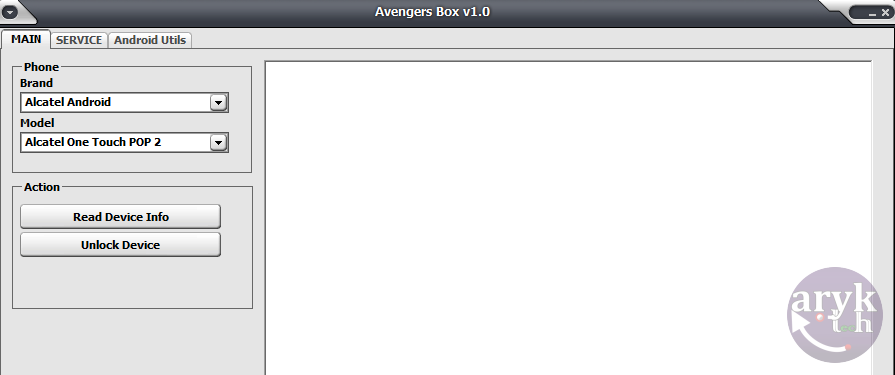
4. Right under the Main tab, select your phone or modem Brand and then, select your Model right below it.

5. At the Action tab, select Unlock Device. A dialogue box will appear. Read the info on the screen and make sure that it is correct then, proceed.

6. Wait few minutes or until the operation is successfully completed and then, disconnect your phone from the PC.

7. Congratulations! You have just successfully unlocked your phone or modem with Avengers Box.

What Can you Do with Avengers Box?

1. Perform direct Network/SIM Unlock of supported models from the listed brands.
2. Avengers Box can enhance flashing of firmwares.
3. Avengers Box can repair software.
4. You can use Avengers Box to write IMEI on ZTE modems.
5. It can calculate unlock codes both online and offline.

List of Supported Brands By Avengers
1. Alcatel
2. Coolpad
3. Huawei Android
4. Huawei Modem
5. Orange
6. Samsung Android
7. Samsung Generic
8. Vodafone
9. ZTE Android
10. ZTE Modem

DOWNLOAD SECTION
Download Avengers Box
This page is basically for ArykTECH A B C Package bearers. Learn more about A B C Package here and gain access to all phone software repair tools.
Want a PREMIUM SOFTWARE free? Submit it here! We will crack it for you.
Donate to support future cracked softwares!

How to Submit A Software to ArykTECH and Get its CRACK Version

Basically, ArykTECH provides cracked versions of phones service tools but if you have any software that is needed either for persional use or for your business and the cost of that program is somewhat heavy for you to afford, you may submit the software to ArykTECH and hope to receive its cracked version download link in your email in few days from the day it was submitted.

NOTE:
A compulsory donation of 10 USD must be made via PayPal here, Payza or Bitcoin. For Payza and Bitcoin details, please, Contact Us here
You have seen and agreed to the T&C laid out here.
Your original uploaded file will be kept within ArykTECH for future references.

Now, adhere to the procedures laid out below here to upload your software. You must adhere strictly to the procedures else, your cracked version may be delayed or not delivered at all.

Step By Step Guides to Upload your Software

1. Using Notepad++ or any other text editor, create a text file. In the text file, contain the details as maybe seen in the picture below.
upload software detail

2. Download the setup of the software program you want cracked for you. If you have downloaded the software or already have a copy of it on your PC, skip this step and proceed to the next step.

3. Create a new folder on your PC and rename this folder to match with the software you want us crack for you.
Create folder for your crack software

4. Move both the software and the text file you created (in the step one above) into the same folder.
contain text file and software in the same folder

5. Compress/ZIP this folder using WinRAR or WinZIP. Make sure that both the software and the text file are contained within the ZIP file. Both .zip and .rar file formats are accepted.
zip both software and text file

6. Go to our Upload page here and upload the ZIP file.

7. Once your file is received, a notification email will immediately be sent to the email address contained in your attached text file.

If you have any questions, please, Contact Us here.

NCK Box Free Download: All Versions

If you have ever had the need to unlock a particular phone, either Network Unlock or SIM unlock, you may have heard of NCK BOX. NCK BOX is a super easy tool used for servicing phones. NCK BOX is used for flashing, unlocking (SIM or Network) series of smartphones including Samsung, HTC, Huawei, ZTE, Cubot, Coolpad, Micromax, BlackBerry only to mention a few from the huge list of phone brands supported by NCK Box. It is also used for writting IMEI, preserving and restoring EFS and also used to restoring service signals on smartphones that may have lost their service signals by any means.

Here, you will have access to download all versions of NCK BOX [cracked] versions. This list include those that are cracked by ArykTECH [me and the entire group] so, you can be sure that you are downloading the right NCK BOX crack versions completely *FREE for those that have access to the ABC Package folders on Mediafire and Mega.

Future versions of NCK BOX shall be cracked and added to the list as soon as they are ready for download.
CRACKED?
If you are worried by the word cracked and wonder what it means, it simply means that the same NCK BOX known to you has been modified to work without its BOX or Dongle. You can simply download it, install it and start using it. No setup registrations, BOX or DONGLE is required.

How to Network or SIM Unlock Phones Using NCK BOX

1. Download the latest NCK BOX from your ABC Package folder either on Mega or Mediafire. ABC Package is a special phone software repair kit that contains all phone software repair tools including firmwares, flashing and unlocking tools, video tutorials and the likes. For detailed info, see ABC Package page here.

2. Download and install Android USB Debugging and Fastboot drivers on your PC. For MTK Android devices, Install USB VCOM Drivers and SPD Android devices, Install SPD Android Drivers. You may also install PDanet+ or any other universal drivers for Android devices for a good standing.

3. Locate the NCK Box setup you downloaded from step one above. The setup is compressed in a ZIP file, simply decompress it and then, double-click the setup file to install it on your PC.

4. When the installation is complete, launch NCK Dongle/BOX. Preferably, it should be launched as Admin.

5. Now, on NCK Box, click on Unlocking tab. From the screen, under Phone Settings, click on the first box to select the Phone Brand you want to unlock. And from the second box, select the model of your smartphone e.g Samsung Galaxy S6 and proceed to the next step.

6. Now, enable USB Debugging Mode on your phone and connect it to the PC and then, wait until Windows detects the phone and installs the complete drivers.

7. NCK BOX can network or SIM unlock most phones in two (2) modes. Either Meta Mode or Flash Mode -the FLASH MODE is also known as Recovery Mode or Boot Mode for some. In any case, you will see the list of the modes that is/are supported by your device in the third (3rd) pane on NCK Box.

If your phone supports META Mode, you will see the option to reboot the phone to META MODE on NCK BOX. Click the button and NCK BOX will reboot your phone to META MODE otherwise, you will have to reboot your phone to either FASTBOOT MODE, RECOVERY MODE, FLASH MODE or BOOT MODE by yourself and this depends on the type and brand of phones you are holding.

8. Now, if after connecting the phone to the PC, NCK BOX displays 123456789, the default code, click Direct Unlock. This will unlock the phone straight away. If otherwise, click Read Info on NCK Box. This will read your connected device info and displays the Unlock Codes.

9. Now, disconnect your device from the PC and INSERT an UNSUPPORTED SIM CARD in it and reboot the device. When the device asks/prompts for the Unlock Code, enter the Unlock Code generated by NCK BOX and press OK.

10. Now, your device is successfully Network/SIM Unlocked. NOTE: if the unlock was not done, factory reset the phone and restart the process again.

NOTICE:
1. This tutorial complies ONLY with the latest NCK BOX thus, from 2.5.X.X and beyond.
2. This tutorial is generalized thus, it is streamlined to work with all devices. If you want specific tutorial for specific devices check:
3. To have access to the ABC Package folder, a compulsory donation of 20USD is required via PayPal, Bitcoin, Payza or Payoneer. For Bitcoin and Payoneer details, please Contact Us here.
4. Have a software you want us crack for you? Submit it here.

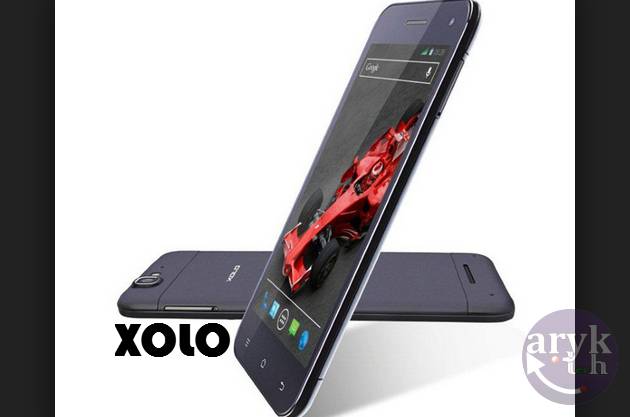
Xolo Omega 5.0 Stock Firmware, Stock ROM Download

Xolo Android Stock ROM Firmware PAC File
This Xolo_Omega_5.0S035_09032015 Firmware, Stock ROM file can be used with any service tools capable of Flashing Stock ROM file on Xolo Android devices.
Stock firmware are mostly needed to either upgrade your Xolo Omega 5.0, downgrade it or, to simply flash the phone to correct certain software issues or malfunctions on the phone. Here on this page I have contained the download link for the complete Xolo Omega 5.0, Stock ROM file which can be used to flash factory OS back to your Xolo Omega 5.0.

How to Download Stock Firmware and Flash Xolo Omega 5.0 with the Stock ROM

1. Download SP Flash Tool from here and install it on your PC. If you don't have MTK Android drivers installed on your PC yet, you must install it too. Download VCOM Drivers here

2. Download your Xolo Omega 5.0 firmware, Stock ROM File from here.

3. Open the SP Flash Tool you downloaded from the link above. It is compressed in a zip file, simply extract it onto a folder on your PC, open the folder to locate flash_tool.exe application and then; double-click it to lunch the program.

4. Go to the folder where you downloaded the Xolo Omega 5.0 Stock ROM and open it. It is compressed in a ZIP File, simply decompress/unzip it onto a folder on your PC.

5. On SP Flash Tool, select Scatter Loading. A window should open. Using the browse button, navigate to the folder where you unzipped the Xolo Omega 5.0 stock ROM and then select "MTXXXX-ANDROID-SCATTER", from there. Remember: "xxxx" refers to the MTK version of your phone.

6. Once selected, SP Flash Tool will load all the partitions in the Xolo Omega 5.0 stock ROM you downloaded. From the list, mark all the partitions EXCEPT these three (3): Preloader, UserData and CACHE.

7. Now, select Download on SP Flash Tool.

8. Put off your Xolo Omega 5.0 or remove battery from it and re-insert the battery again. Connect your Xolo Omega 5.0 Mobile Phone to the PC and then tap the Power button once.

9. For few seconds, your Windows PC will install the necessary drivers for the flashing operation and then, the flashing operation will commence promptly.

10. When the flashing operation completes, SP Flash Tool will display a green PASS circle. You may then disconnect your phone from the PC.
CONGRATULATIONS! You have successfully flashed your Xolo Omega 5.0 to its factory defaults.
NOTE: if you encounter any errors while flashing your Xolo Omega 5.0 using SP Flash Tools, see here: Solutions to All SP Flash Tools Errors: Practical Guides

For Graphical Illustrations on how to flash Xolo android devices, see here: How to Flash Xolo Android Device: Step by Step with Pictures

Also Read:

Video Tutorial: How to Flash All MTK Android Devices Including Xolo Omega 5.0


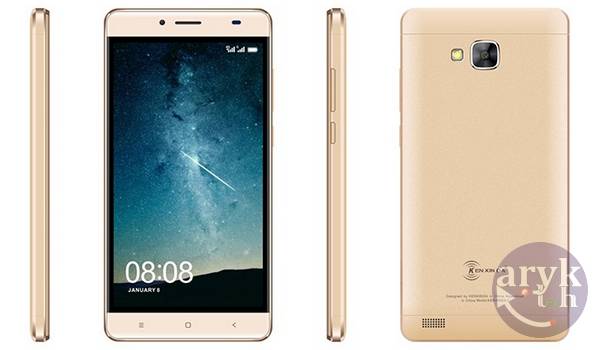
Kenxinda K9200 [SC6820] Stock Firmware, Flash File Download

Kenxinda Android Stock ROM Firmware PAC File
This Kenxinda K9200 [SC6820] Firmware, PAC file can be used with any service tools capable of Flashing PAC file on SpreadTRUM Android Devices.
Stock firmware are mostly needed to either upgrade or downgrade your Kenxinda K9200 [SC6820]. It can also be needed to simply flash your Kenxinda android device in order to correct certain software issues or malfunctions on the phone. Here on this page I have contained the download link for the complete Kenxinda K9200 [SC6820] Stock ROM, PAC file which can be used to flash factory OS back to your Kenxinda K9200 [SC6820].

How to Download Latest Firmware and Flash Kenxinda K9200 [SC6820] with this PAC File

1. Download SPD Download Tool from here and install it on your PC. Also, it is a must to install SpreadTRUM Android drivers on your PC. You may Download SpreadTRUM Android Drivers here

2. Download your Kenxinda K9200 [SC6820], latest firmware pac File from here.

3. Open the SpreadTRUM Flash Tool you downloaded from the link above. It is compressed in a zip file, simply extract it onto a folder on your PC, open the folder to locate the SpreadTRUM Upgrade Tool application and then; double-click it to lunch the program.

4. Now, Put off your Kenxinda K9200 [SC6820] or remove battery from it and re-insert the battery then, connect your Kenxinda K9200 [SC6820] Mobile Phone to the PC.

5. Now, select the specific STOCK FIRMWARE you downloaded for your Kenxinda K9200 [SC6820] android device by clicking on the Select Pack icon.

6: As soon as the file is loaded successfully, click on "Download Button" to commence the flashing operation.
NOTE: During the flashing operation, your phone may reboot once or twice. Just leave it and do not interrupt the operation.

7: Once the flashing operation is successfully completed, you will see "Previous Passed" message displayed in green on the SpreadTRUM Flash Tool.
CONGRATULATIONS! You have now successfully flashed your Kenxinda K9200 [SC6820] android device.

For Graphical Illustration on how to flash Kenxinda SpreadTRUM android devices, see here: How to Flash Kenxinda Android Device: Step by Step with Pictures

Also Read:

Xolo Omega 5.5 Stock Firmware, Stock ROM Download

Xolo Android Stock ROM Firmware PAC File
This Xolo_Omega_5.5_S016_06012015 Firmware, Stock ROM file can be used with any service tools capable of Flashing Stock ROM file on Xolo Android devices.
Stock firmware are mostly needed to either upgrade your Xolo Omega 5.5, downgrade it or, to simply flash the phone to correct certain software issues or malfunctions on the phone. Here on this page I have contained the download link for the complete Xolo Omega 5.5, Stock ROM file which can be used to flash factory OS back to your Xolo Omega 5.5.

How to Download Stock Firmware and Flash Xolo Omega 5.5 with the Stock ROM

1. Download SP Flash Tool from here and install it on your PC. If you don't have MTK Android drivers installed on your PC yet, you must install it too. Download VCOM Drivers here

2. Download your Xolo Omega 5.5 firmware, Stock ROM File from here.

3. Open the SP Flash Tool you downloaded from the link above. It is compressed in a zip file, simply extract it onto a folder on your PC, open the folder to locate flash_tool.exe application and then; double-click it to lunch the program.

4. Go to the folder where you downloaded the Xolo Omega 5.5 Stock ROM and open it. It is compressed in a ZIP File, simply decompress/unzip it onto a folder on your PC.

5. On SP Flash Tool, select Scatter Loading. A window should open. Using the browse button, navigate to the folder where you unzipped the Xolo Omega 5.5 stock ROM and then select "MTXXXX-ANDROID-SCATTER", from there. Remember: "xxxx" refers to the MTK version of your phone.

6. Once selected, SP Flash Tool will load all the partitions in the Xolo Omega 5.5 stock ROM you downloaded. From the list, mark all the partitions EXCEPT these three (3): Preloader, UserData and CACHE.

7. Now, select Download on SP Flash Tool.

8. Put off your Xolo Omega 5.5 or remove battery from it and re-insert the battery again. Connect your Xolo Omega 5.5 Mobile Phone to the PC and then tap the Power button once.

9. For few seconds, your Windows PC will install the necessary drivers for the flashing operation and then, the flashing operation will commence promptly.

10. When the flashing operation completes, SP Flash Tool will display a green PASS circle. You may then disconnect your phone from the PC.
CONGRATULATIONS! You have successfully flashed your Xolo Omega 5.5 to its factory defaults.
NOTE: if you encounter any errors while flashing your Xolo Omega 5.5 using SP Flash Tools, see here: Solutions to All SP Flash Tools Errors: Practical Guides

For Graphical Illustrations on how to flash Xolo android devices, see here: How to Flash Xolo Android Device: Step by Step with Pictures

Also Read:

Video Tutorial: How to Flash All MTK Android Devices Including Xolo Omega 5.5


Kenxinda K9300 [SC8810] Stock Firmware, Flash File Download

Kenxinda Android Stock ROM Firmware PAC File
This Kenxinda K9300 [SC8810] v0.2 Firmware, PAC file can be used with any service tools capable of Flashing PAC file on SpreadTRUM Android Devices.
Stock firmware are mostly needed to either upgrade or downgrade your Kenxinda K9300 [SC8810]. It can also be needed to simply flash your Kenxinda android device in order to correct certain software issues or malfunctions on the phone. Here on this page I have contained the download link for the complete Kenxinda K9300 [SC8810] Stock ROM, PAC file which can be used to flash factory OS back to your Kenxinda K9300 [SC8810].

How to Download Latest Firmware and Flash Kenxinda K9300 [SC8810] with this PAC File

1. Download SPD Download Tool from here and install it on your PC. Also, it is a must to install SpreadTRUM Android drivers on your PC. You may Download SpreadTRUM Android Drivers here

2. Download your Kenxinda K9300 [SC8810], latest firmware pac File from here.

3. Open the SpreadTRUM Flash Tool you downloaded from the link above. It is compressed in a zip file, simply extract it onto a folder on your PC, open the folder to locate the SpreadTRUM Upgrade Tool application and then; double-click it to lunch the program.

4. Now, Put off your Kenxinda K9300 [SC8810] or remove battery from it and re-insert the battery then, connect your Kenxinda K9300 [SC8810] Mobile Phone to the PC.

5. Now, select the specific STOCK FIRMWARE you downloaded for your Kenxinda K9300 [SC8810] android device by clicking on the Select Pack icon.

6: As soon as the file is loaded successfully, click on "Download Button" to commence the flashing operation.
NOTE: During the flashing operation, your phone may reboot once or twice. Just leave it and do not interrupt the operation.

7: Once the flashing operation is successfully completed, you will see "Previous Passed" message displayed in green on the SpreadTRUM Flash Tool.
CONGRATULATIONS! You have now successfully flashed your Kenxinda K9300 [SC8810] android device.

For Graphical Illustration on how to flash Kenxinda SpreadTRUM android devices, see here: How to Flash Kenxinda Android Device: Step by Step with Pictures

Also Read: