The former exercise show a "
Simple example of using DatePicker with both calendar view and spinners". We can show/hide calendar view and spinners individually in XML with
android:calendarViewShown and
android:spinnersShown attributes.
Introduced in API level 11, we can also program it using Java code with
setCalendarViewShown() and
setSpinnersShown() methods.
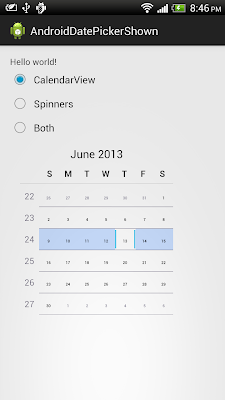
<LinearLayout xmlns:android="http://schemas.android.com/apk/res/android"
    xmlns:tools="http://schemas.android.com/tools"
    android:layout_width="match_parent"
    android:layout_height="match_parent"
    android:paddingBottom="@dimen/activity_vertical_margin"
    android:paddingLeft="@dimen/activity_horizontal_margin"
    android:paddingRight="@dimen/activity_horizontal_margin"
    android:paddingTop="@dimen/activity_vertical_margin"
    android:orientation="vertical"
    tools:context=".MainActivity" >

    <TextView
        android:layout_width="wrap_content"
        android:layout_height="wrap_content"
        android:text="@string/hello_world" />
    <RadioGroup
        android:id="@+id/optGroup"
        android:layout_width="match_parent"
        android:layout_height="wrap_content" >
        <RadioButton
            android:id="@+id/optCalendar"
            android:layout_width="wrap_content"
            android:layout_height="wrap_content"
            android:text="CalendarView"
            android:checked="true" />
        <RadioButton
            android:id="@+id/optSpinners"
            android:layout_width="wrap_content"
            android:layout_height="wrap_content"
            android:text="Spinners" />
        <RadioButton
            android:id="@+id/optBoth"
            android:layout_width="wrap_content"
            android:layout_height="wrap_content"
            android:text="Both" />
  </RadioGroup>
    <DatePicker
        android:id="@+id/pickerdate"
        android:layout_width="wrap_content"
        android:layout_height="wrap_content"
        android:calendarViewShown="true"
        android:spinnersShown="false" />

</LinearLayout>
package com.example.androiddatepickershown;

import android.os.Bundle;
import android.widget.DatePicker;
import android.widget.RadioButton;
import android.widget.RadioGroup;
import android.widget.RadioGroup.OnCheckedChangeListener;
import android.app.Activity;

public class MainActivity extends Activity {

 RadioGroup groupBtn;
 RadioButton btnCalendar, btnSpinners, btnBoth;
 DatePicker pickerDate;

 @Override
 protected void onCreate(Bundle savedInstanceState) {
  super.onCreate(savedInstanceState);
  setContentView(R.layout.activity_main);
  groupBtn = (RadioGroup)findViewById(R.id.optGroup);
  btnCalendar = (RadioButton)findViewById(R.id.optCalendar);
  btnSpinners = (RadioButton)findViewById(R.id.optSpinners);
  btnBoth = (RadioButton)findViewById(R.id.optBoth);
  pickerDate = (DatePicker)findViewById(R.id.pickerdate);

  groupBtn.setOnCheckedChangeListener(new OnCheckedChangeListener(){

   @Override
   public void onCheckedChanged(RadioGroup arg0, int arg1) {
    if(btnCalendar.isChecked()){
     pickerDate.setCalendarViewShown(true);
     pickerDate.setSpinnersShown(false);
    }else if(btnSpinners.isChecked()){
     pickerDate.setCalendarViewShown(false);
     pickerDate.setSpinnersShown(true);
    }else{
     pickerDate.setCalendarViewShown(true);
     pickerDate.setSpinnersShown(true);
    }
   }});
 }

}


